
Write and organise my documents
Write your deeds and letters, upload your files and file them in your cases.
For: Lawyer · Pro
Steps
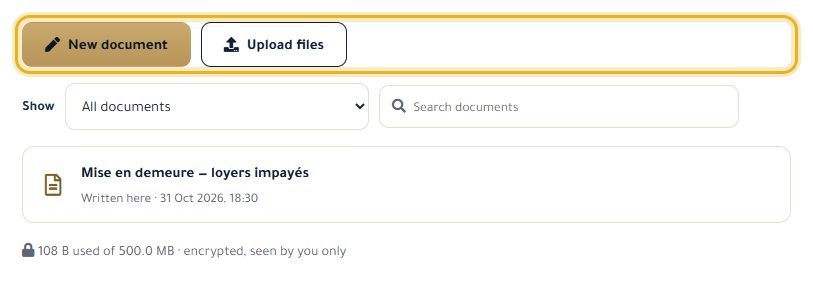
Open “Documents”. “New document” opens the editor; “Upload files” adds your PDF, Word, image or text files (10 MB max each).
In the editor, give it a title and write. The toolbar handles formatting (headings, bold, lists); “Preview” shows the result.
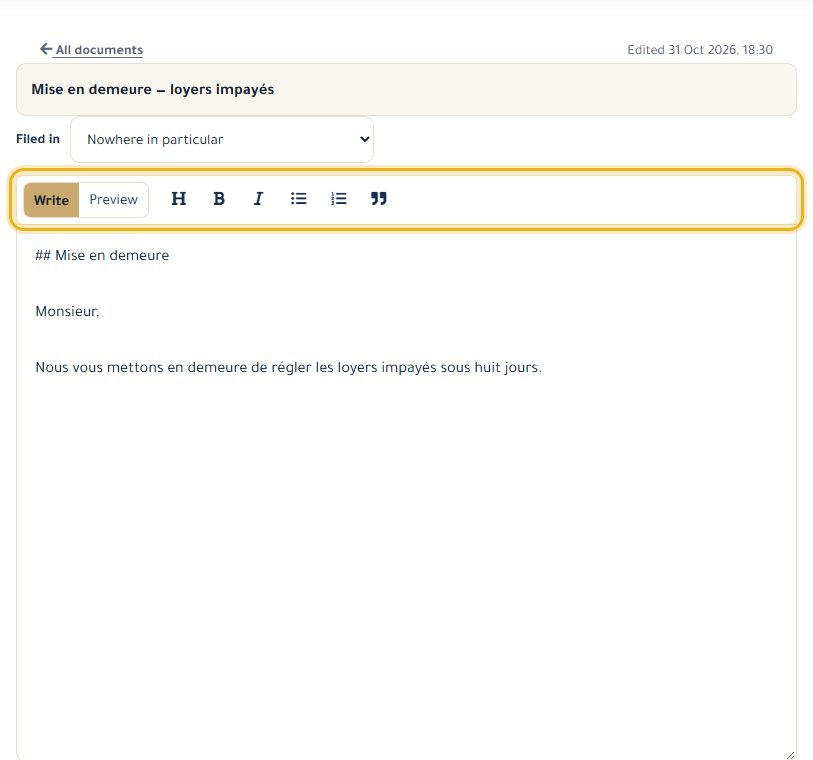
“Filed in” puts the document in a case or a folder (“New folder…” to create one).
Click “Save” (or Ctrl+S). “Word” exports to .docx, “Print / PDF” prints, “History” restores an earlier version.
Good to know
- Your documents are encrypted and only you can see them; your clients never do.
- “New document” immediately creates an “Untitled document”: delete it if you don't use it.
- Keep your templates in a “Templates” folder so they are easy to find.
Read next
- Use the AI assistant Ask questions about your cases and documents, have a letter or a note drafted.
- Manage my cases Create a case, track its hearings and deadlines, take notes and keep track of fees.
Documents and AI assistant
- Use the AI assistant Ask questions about your cases and documents, have a letter or a note drafted.
Write to our team: we reply quickly. Contact us