
Accept, decline and cancel appointments
Answer your clients' requests and manage your confirmed appointments.
For: Lawyer · Pro
Steps
The number of pending requests shows next to “Appointments” in the menu. Open it: the “Pending” tab lists the requests.
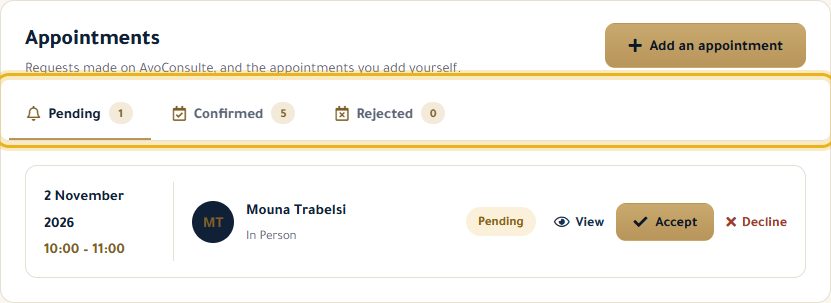
Click “View” to read the subject and description of the request.
Click “Accept” or “Decline”, then confirm. The client is told by email; declining frees the slot.

Under “Confirmed”, “Cancel appointment” cancels an upcoming appointment: a client with an account gets an email.
Good to know
- The “Rejected” tab groups all cancelled appointments, whether you or the client cancelled them.
- A request whose time has passed without an answer disappears from “Pending”.
- For a video appointment, “Join the video call” appears in the details, 15 minutes before the time.
Read next
- Add an appointment myself Put an appointment made by phone or at the office in your calendar, with a client on the platform or not.
- Create an event in my calendar Block out time (a hearing, a meeting…) so nobody can book it, and see your whole calendar.
Appointments and calendar
- Add an appointment myself Put an appointment made by phone or at the office in your calendar, with a client on the platform or not.
- Create an event in my calendar Block out time (a hearing, a meeting…) so nobody can book it, and see your whole calendar.
Write to our team: we reply quickly. Contact us