
Set my business hours
The days and times you see clients, shown on your profile and used for online booking slots.
For: Lawyer
Steps
Open “Business Hours” in the menu.
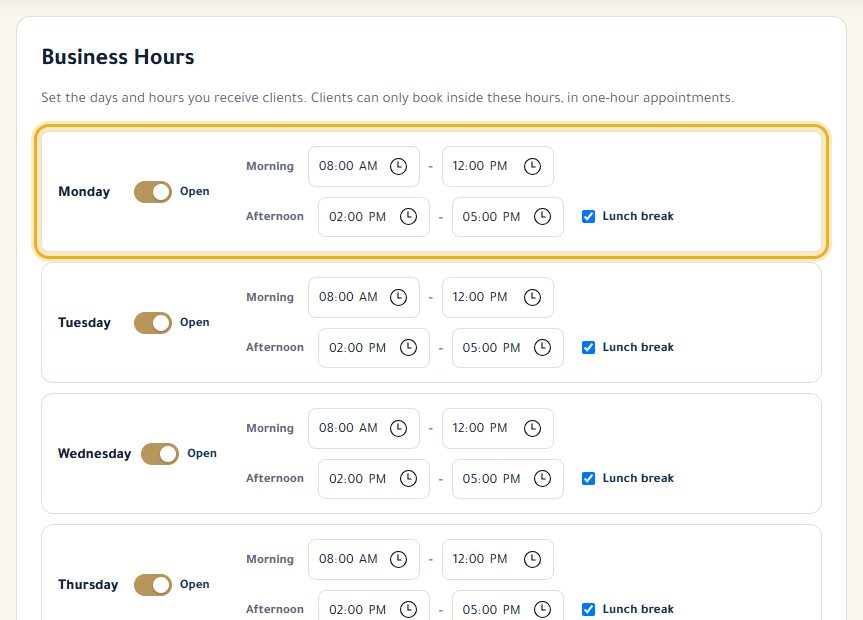
For each day, flip the switch to “Open” or “Closed”.
Tick “Lunch break” to have morning and afternoon hours; untick it for continuous hours.
“Apply Monday's hours to Tuesday–Friday” copies Monday's hours. Finally, click “Save hours”.
Good to know
- Clients book one-hour slots, only within these hours and outside your appointments and events.
- Without Pro, your hours show on your profile but online booking isn't open.
Read next
- Accept, decline and cancel appointments Answer your clients' requests and manage your confirmed appointments.
- Create an event in my calendar Block out time (a hearing, a meeting…) so nobody can book it, and see your whole calendar.
Getting started
- First steps on your lawyer dashboard What your dashboard shows, the menu, and the settings to do first.
- Complete and edit my profile Address, phone, fax, introduction, services and education: what your clients see.
Write to our team: we reply quickly. Contact us